Icono de UltraShot

UltraShot

Graba. Pule. Comparte.Record. Polish. Share.

Graba tu pantalla y recibe un video que parece hecho por un editor: zooms que siguen tu cursor, clics que se notan y fondos preciosos. Sin saber editar. Record your screen and get a video that looks professionally edited: zooms that follow your cursor, clicks that stand out and beautiful backgrounds. No editing skills needed.

Descargar en Mac App StoreDownload on the Mac App Store Ver el videoWatch the film ›

Gratis · Para macOS Tahoe 26 o posteriorFree · Requires macOS Tahoe 26 or later

Antes y despuésBefore and after

Tú grabas.
Studio hace el resto.
You record.
Studio does the rest.

Así grabasWhat you record Una grabación normal de pantalla.A plain screen recording.
Así lo entrega UltraShotWhat UltraShot delivers Zoom donde haces clic, cursor suave y fondo. Automático.Zoom where you click, smooth cursor and background. Automatically.

Studio

Un editor que piensa
como un editor.
An editor that thinks
like an editor.

UltraShot guarda la pantalla, el cursor, los clics, la cámara y el audio por separado. Así puedes decidir todo después de grabar, sin volver a grabar nunca.UltraShot captures the screen, cursor, clicks, camera and audio separately, so you decide everything after recording — and never have to re-record.

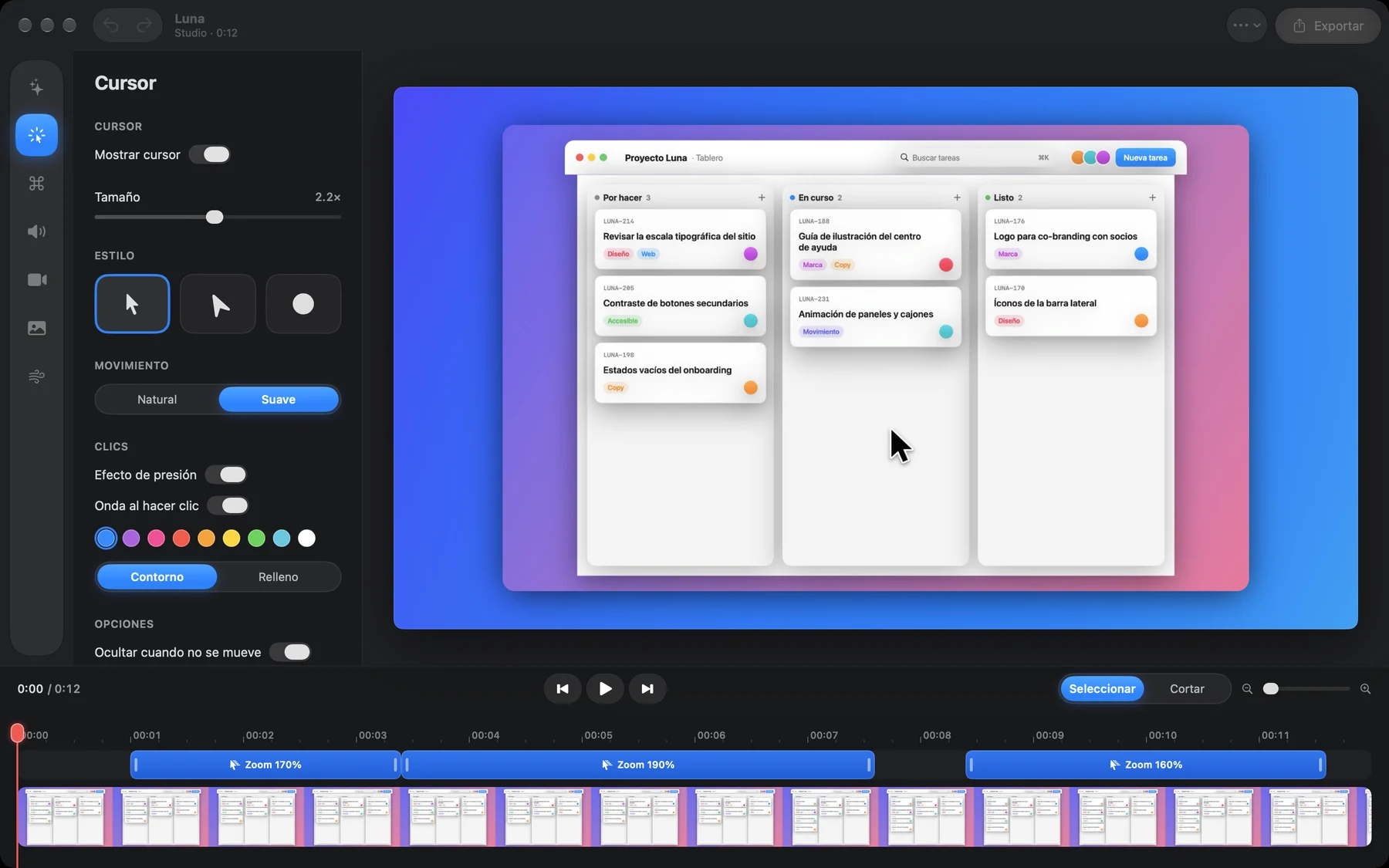
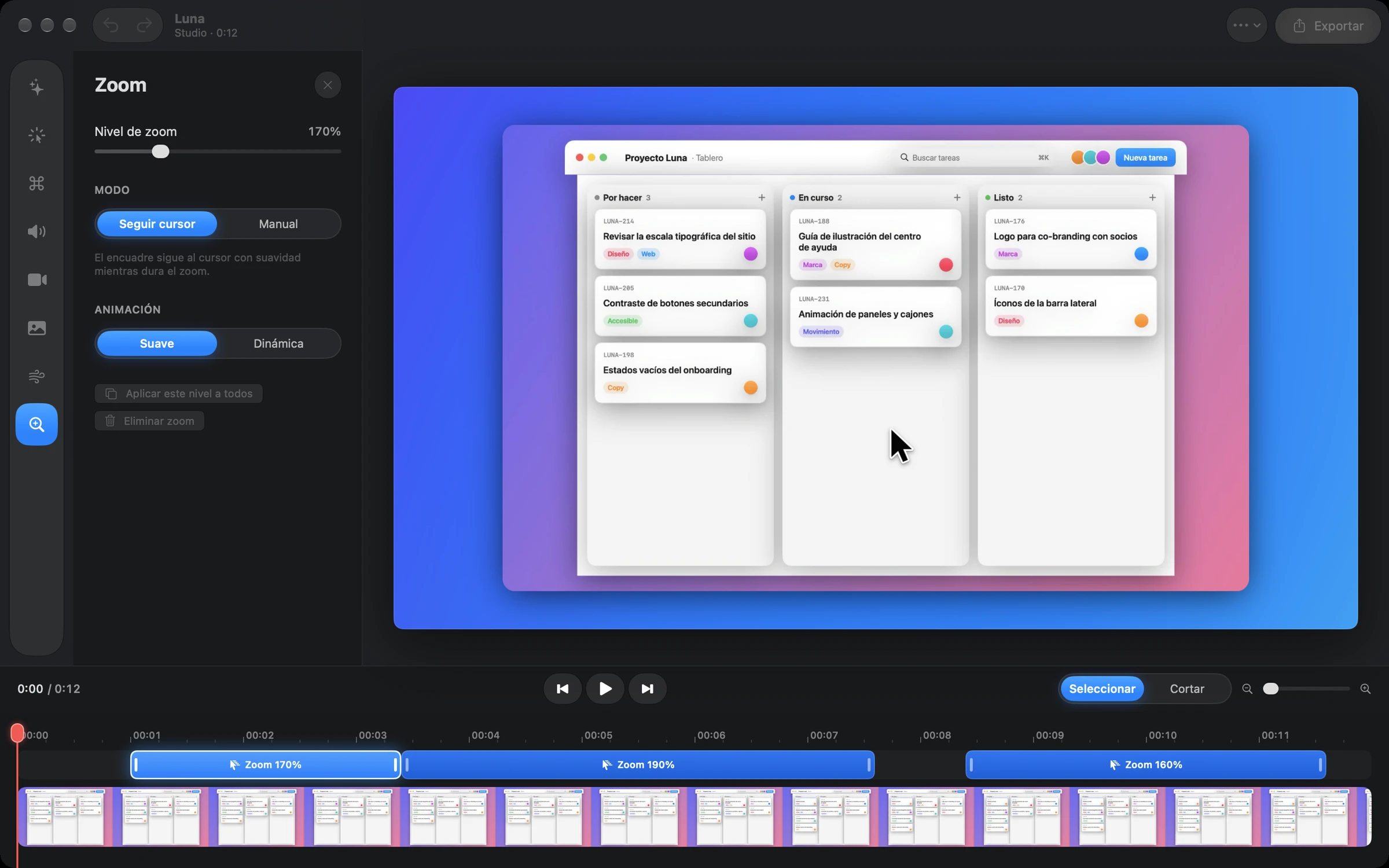
Editor de UltraShot con zooms en la línea de tiempo

Zooms automáticos.Automatic zooms.

Se acerca donde haces clic o escribes y sigue tu cursor con suavidad. Muévelos, estíralos o añade los tuyos.It zooms in where you click or type and follows your cursor smoothly. Move them, stretch them or add your own.

4K

Nítido de verdad.Truly sharp.

Exporta en 1080p, 1440p o 4K a 60 fps, en MP4 o GIF.Export in 1080p, 1440p or 4K at 60 fps, as MP4 or GIF.

Cursor y clics que se notan.Cursor and clicks that pop.

Más grande, con movimiento suave y una onda en cada clic. Se esconde solo cuando no lo mueves.Bigger, with smooth motion and a ripple on every click. It hides itself when idle.

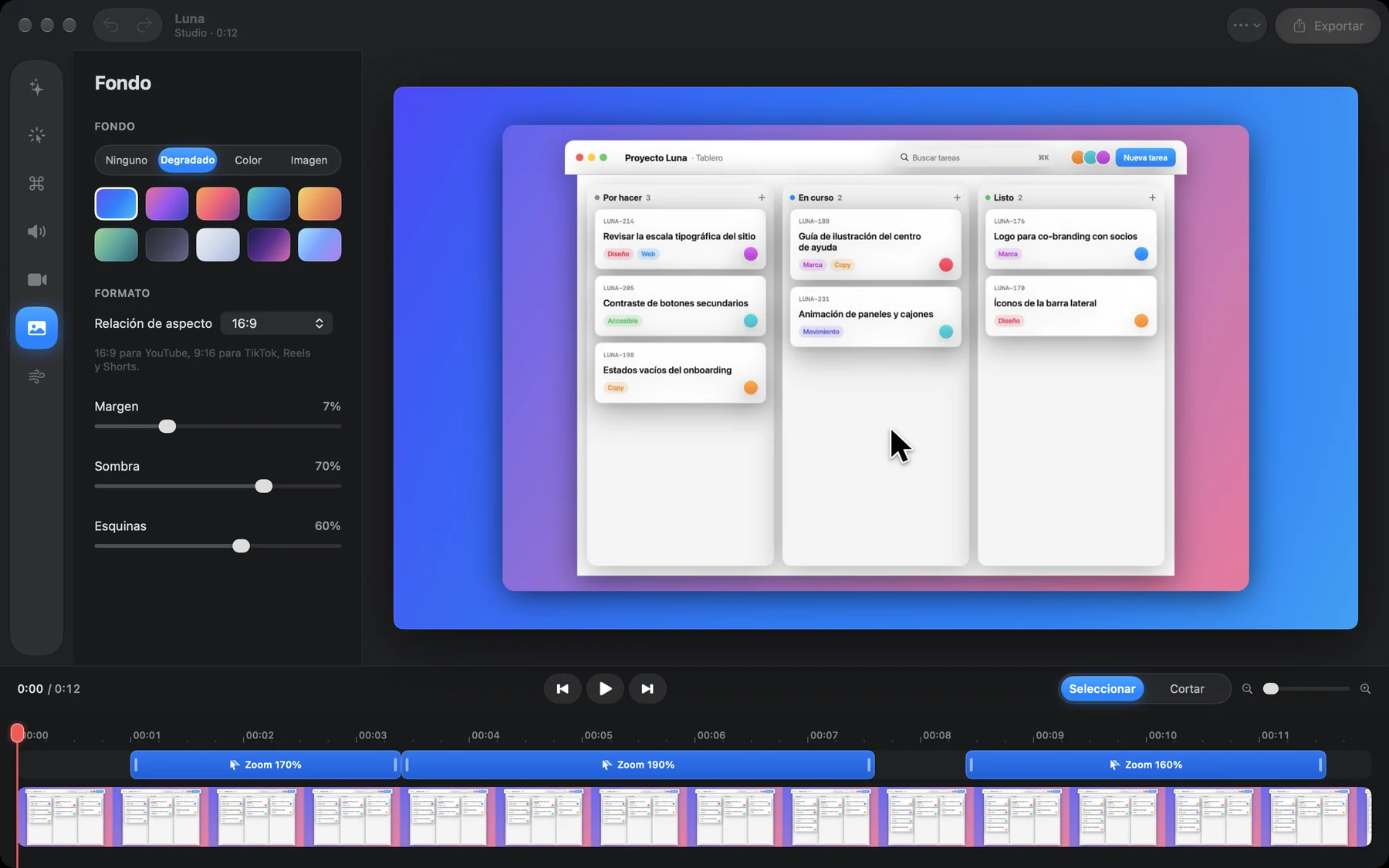
Fondos preciosos.Gorgeous backgrounds.

Degradados, colores o tu propia imagen, con sombra, margen y esquinas a tu gusto.Gradients, colors or your own image, with shadow, padding and corners just the way you like.

GIF en un clic.GIFs in one click.

Graba un GIF en bucle, ligero y listo para pegar en un chat, un ticket o la documentación.Record a lightweight looping GIF, ready to paste into a chat, a ticket or your docs.

Tú, en la esquina.You, in the corner.

Tu cámara en círculo o rectángulo, donde quieras. Se hace pequeña al hacer zoom.Your camera as a circle or rectangle, anywhere. It shrinks during zooms.

Cortes sin miedo.Fearless cuts.

Divide, quita y recupera tramos cuando quieras. Todo se puede deshacer.Split, remove and restore any part. Everything can be undone.

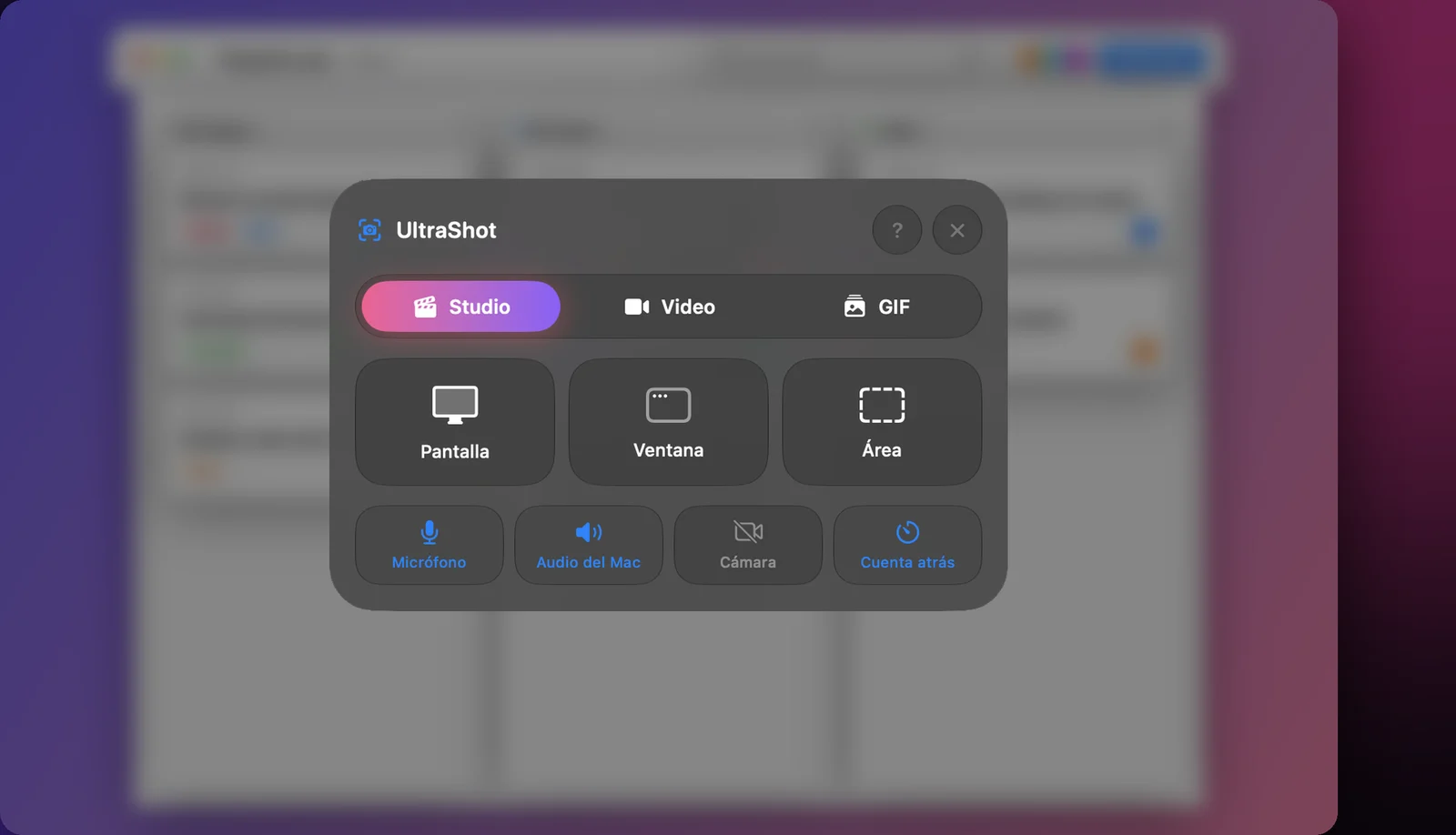
Elige qué grabar en un clic.Pick what to record in one click.

Pulsa ⌥⇧⌘5 desde cualquier app: pantalla, ventana o área, con micrófono, audio del Mac y cámara. Lo que queda fuera del área se desenfoca para que te concentres.Press ⌥⇧⌘5 from any app: screen, window or area, with microphone, Mac audio and camera. Everything outside the area blurs so you can focus.

Panel para elegir qué grabar

Nuevo · Asistente con IANew · AI Assistant

Dile lo que quieres.
Lo hace.
Say what you want.
It's done.

Escribe «hazlo para TikTok» o «quita las pausas» y el video cambia al instante. Funciona dentro de tu Mac con la inteligencia de Apple: sin internet, sin cuentas y sin enviar tus videos a ningún lado.Type "make it for TikTok" or "cut the pauses" and the video changes instantly. It runs on your Mac with Apple's on-device intelligence: no internet, no accounts, your videos never leave.

Hazlo para TikTok y quita las pausasMake it for TikTok and cut the pauses
Listo: formato 9:16, quité 5 silencios (8,6 s).Done: 9:16 format, removed 5 silences (8.6 s).DeshacerUndo
Cursor más grande y más zoomBigger cursor and more zoom
Listo: cursor a 3×, zoom a 2,3×.Done: cursor at 3×, zoom at 2.3×.
Corta del segundo 2 al 4Cut from second 2 to 4
Listo: corté de 0:02 a 0:04.Done: cut from 0:02 to 0:04.
«Hazlo profesional»"Make it look pro" «Corta los silencios»"Cut the silences" «Sin cámara»"No camera" «Cámara arriba a la izquierda»"Camera top left" «Fondo degradado»"Gradient background" «Zoom al 200 %»"Zoom to 200%"

Disponible en UltraShot 1.4. Las órdenes vagas usan Apple Intelligence si está activado en tu Mac.Coming in UltraShot 1.4. Open-ended requests use Apple Intelligence when it's enabled on your Mac.
FormatosFormats

Un video.
Todas las redes.
One video.
Every platform.

Cambia de 16:9 para YouTube a 9:16 para Reels, TikTok y Shorts con un clic. El fondo se adapta y los zooms siguen tu cursor para que todo se lea en el teléfono.Switch from 16:9 for YouTube to 9:16 for Reels, TikTok and Shorts in one click. The background adapts and zooms follow your cursor so everything reads on a phone.

16:9
9:16
1:1
4:5
  • MP4 yand GIF. Para redes, documentación o un correo.For social, docs or an email.
  • Rápido.Fast. Exporta con aceleración por hardware del chip de tu Mac.Hardware-accelerated export on your Mac's chip.
  • Video y GIF rápidos.Quick Video and GIF. ¿Sin editar? Graba y comparte desde la tarjeta flotante.No editing? Record and share from the floating card.

Tus videos son tuyos.Your videos are yours.

Sin cuentas, sin analítica, sin servidores. Todo lo que grabas se queda en tu Mac, en Películas → UltraShot. No recogemos ningún dato.No accounts, no analytics, no servers. Everything you record stays on your Mac, in Movies → UltraShot. We collect no data.

Lee la política de privacidad ›Read the privacy policy ›

PreciosPricing

Empieza gratis.Start free.

GratisFree

US$0

Para siempreForever

  • Video y GIF rápidosQuick Video and GIF
  • Studio completo con el editorFull Studio with the editor
  • Exporta hasta 1080pExport up to 1080p
  • Marca «Hecho con UltraShot» en Studio"Made with UltraShot" mark on Studio
DescargarDownload
7 DÍAS GRATIS7-DAY FREE TRIAL

UltraShot Pro

US$2.99 / mes/ month

o US$24.99 al año (ahorra 30 %)or US$24.99 per year (save 30%)

  • Todo lo del plan gratisEverything in Free
  • Sin marca de aguaNo watermark
  • Exporta en 1440p y 4KExport in 1440p and 4K
  • Asistente con IA (llega en la 1.4)AI Assistant (coming in 1.4)
  • Todo lo que vengaEverything that comes next
Probar gratisTry it free

Precios en EE. UU.; la App Store muestra el de tu país. Cancela cuando quieras desde la App Store → tu cuenta → Suscripciones.US prices; the App Store shows your local price. Cancel anytime in App Store → Account → Subscriptions.

SoporteSupport

Preguntas frecuentesFrequently asked questions

¿Cómo empiezo una grabación?How do I start a recording?

Pulsa ⌥⇧⌘5 desde cualquier app o haz clic en el ícono de UltraShot en la barra de menús. Elige Studio, Video o GIF y qué quieres grabar: pantalla, ventana o área.Press ⌥⇧⌘5 from any app or click the UltraShot icon in the menu bar. Pick Studio, Video or GIF and what to record: screen, window or area.

No me deja grabar la pantalla.It won't let me record my screen.

Activa UltraShot en Ajustes del Sistema → Privacidad y seguridad → Grabación de pantalla y audio del sistema. Después cierra y vuelve a abrir la app.Enable UltraShot in System Settings → Privacy & Security → Screen & System Audio Recording, then quit and reopen the app.

¿Dónde están mis grabaciones?Where are my recordings?

En Películas → UltraShot. Las exportaciones van a Películas → UltraShot → Exportaciones.In Movies → UltraShot. Exports go to Movies → UltraShot → Exportaciones.

¿Cómo uso el asistente con IA?How do I use the AI Assistant?

En el editor, toca el ícono ✦ de la barra lateral y escribe lo que quieres. Cada cambio se deshace con ⌘Z. Las órdenes vagas necesitan Apple Intelligence activado en tu Mac.In the editor, click the ✦ icon in the sidebar and type what you want. Every change can be undone with ⌘Z. Open-ended requests need Apple Intelligence enabled on your Mac.

¿Cómo cancelo o restauro UltraShot Pro?How do I cancel or restore UltraShot Pro?

Cancela desde la App Store → tu cuenta → Suscripciones. Para restaurar en otro Mac, abre la pantalla de UltraShot Pro en la app y pulsa Restaurar compras.Cancel in App Store → Account → Subscriptions. To restore on another Mac, open the UltraShot Pro screen in the app and click Restore Purchases.

¿Necesitas ayuda?Need help?

Escríbenos y te respondemos en menos de 48 horas.Write to us and we'll reply within 48 hours.

hola@josegober.com